Ever since I got my KS20, I started to think Microsoft Outlook is really convenient. For one very huge plus, it serves as backup on my contacts and my email accounts: NUS and Hotmail. Then had wanted to add GIS account into that as well, but apparently that infringes on security issues of the company.
I always find it a pain when I format my laptop to reinstate the things back into their appropriate places, especially those settings I have painstakingly tweaked for my personal use. So I am going to post here, for all NUS Alumni out there, the steps in setting your Alumni account up on Outlook 2007 (the blardy Computer Centre gave me instructions that were slightly wrong LOLX, thankfully I have a techno-geek of a brother; that was meant as a compliment btw LOLX):
For Hotmail set up, just download 'Outlook Connector' from
here. And follow the installation walkthrough. =)
Steps for NUS Alumni Account on Outlook setup:
1) Open Outlook 2007, find under 'Tools' menu, 'Options'.
2) Under the 'Mail Setup' tab, 'Email Accounts' section, click on 'Email Accounts..'.
3) Under 'Email Accounts', click 'New'.
4) Click 'Next' after ticking 'Manually Configure Settings...'
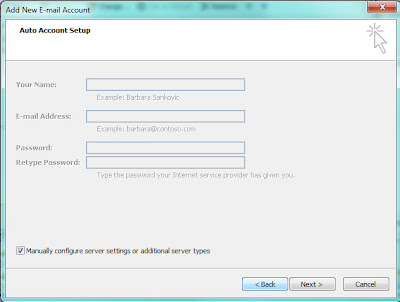
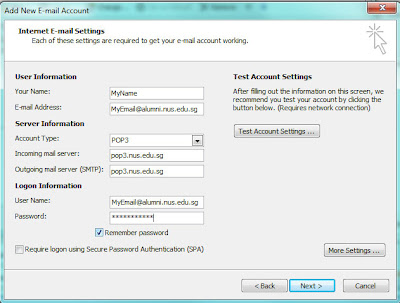
5) Here, enter the Name you want to appear on all your mails, your Alumni Email Address (this is your username too), with the password to access that email. If you cannot remember, visit
http://www.nus.edu.sg/, go 'myEmail', and contact them for a new password or to find out your account name.
At the same time, you need to set the Server Information with EITHER of the following:
If you set:
a. POP3: pop.nus.edu.sg
b. IMAP: imap.nus.edu.sg
c. SMTP: smtp.nus.edu.sg
Try to 'Test Account Settings ...', before clicking 'Next'.
Ok, then you are done!!
Well, nothing to be overexcited about, but just that you've got contacts, tasks, notes on your smartphone, emails on your Hotmail and NUS alumni account all at your sweet convenience,; properly archived and backed up and ready for any rainy day to come. LOLX. Not forgetting, whenever, you are offline, or in a rush to locations with limited Internet access, you still have your important emails to read through, after synching at the last location.


